Start with the right files.
Review the files and project notes selected for a task. The agent can read other files if its permissions allow.
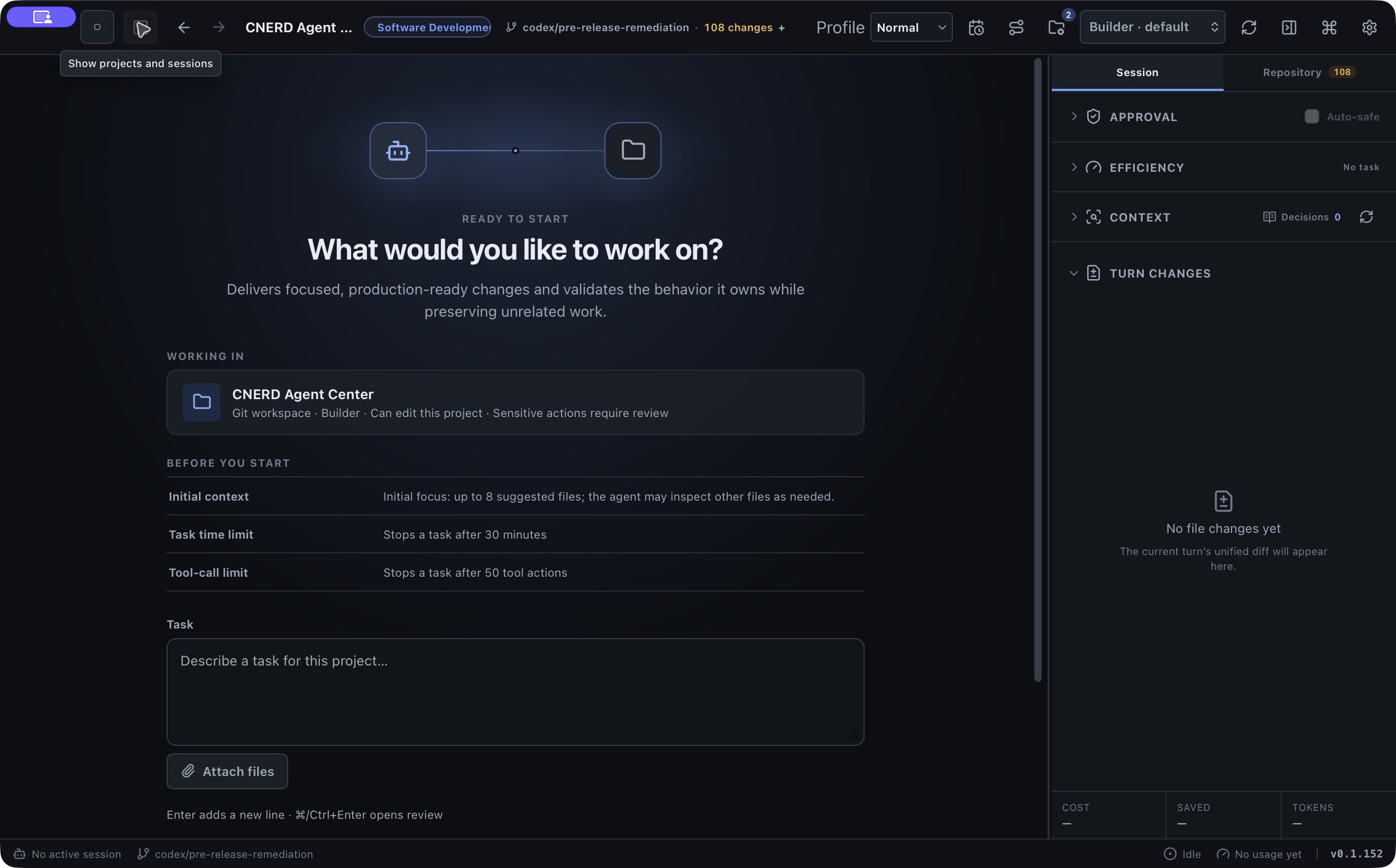
WHAT FORGE ADDS TO CODEX
Forge is a desktop workspace for working with Codex. Choose the files and instructions for a task, follow the changes, and review the results in one place.
Review the files and project notes selected for a task. The agent can read other files if its permissions allow.
Use saved roles and instructions across projects, so you don’t have to write them again for every task.
Read the code changes, review comments, and test results together before you accept the work.
A REAL TASK, FROM START TO FINISH
The task: fix a notes app so it rejects blank titles, keeps existing notes, and still lets people press Enter to save.
Recorded in Forge v0.1.159 · GPT‑6.1 Sol / High · November 3, 2026. Real task and screenshots. Code reviewed, seven tests passed, and Enter-key behavior checked in the browser. This is a demo, not a performance benchmark.
01 / PLAN
Before starting, the task specifies the expected behavior and selects GPT‑6.1 Sol with High reasoning.
02 / BUILD
Forge shows the changed lines of code alongside the task result.
03 / REVIEW
A separate review agent checked the code without editing it and reported no significant problems.
04 / VERIFY
All seven automated tests passed. The form was also tested in the browser by pressing Enter to save.
SAVED ROLES AND INSTRUCTIONS
An agent is an AI role, such as a reviewer.
A skill is a set of saved instructions.
A team groups roles for a type of work.
Use separate AI roles to plan a change, write the code, review it, and check that it works.
Turn the task into a clear implementation plan.
Write the code for the agreed task.
Look for bugs and missed requirements.
Run checks and report what still needs testing.
Example: Fix a notes app that accepts blank titles. What you get: code changes, a review, and test results.
Forge includes the Software Development team and eight starter Team Packs. A pack adds saved roles and instructions. Adding one does not start a task.
PERMISSIONS AND TASK LIMITS
Set file permissions and task limits before starting. Review approval requests as the agent works.
Project records stay on your computer. Task content can be sent to your AI provider.
MODELS AND PROVIDERS
Set a default model for an agent or pick one for the next task. Forge shows the models available through the connection you select.

Built for Codex
Connect your signed-in Codex installation. Choose an available GPT model for coding, file edits, and tool use within your permissions.

Claude integration
Connect your Claude setup and choose an available Claude model for supported analysis and review.

Compatible endpoint
Serve Google’s Gemma on a compatible model server and choose the Gemma model it reports to Forge.

Compatible endpoint
Connect a compatible server running DeepSeek and choose its reported model for analysis and review.

Compatible endpoint
Connect a compatible server running Qwen and choose the Qwen model it reports to Forge.
Compatible endpoints must offer health checks and model discovery without an API key. Forge uses those connections for read-only tasks.
View independent model benchmarksWHY USE FORGE?
Keep the task instructions, code changes, review, and test results together.
See what happened and what still needs attention before you accept the work.
See a real task in Forge →GETTING STARTED
Connect Codex, open a project, and describe what you want done. Choose saved roles and instructions when they help.
Check availabilityAvailability varies by platform.
See the downloads page for current installers and requirements.
You need a computer with Codex installed and signed in, plus a project to work on. Forge connects to your existing Codex setup; it does not install Codex or sign in for you.
We use GPT‑6.1 Sol with High reasoning for demanding coding tasks. Simpler tasks may need less reasoning. High is not always the fastest or cheapest setting.
Project records stay on your computer, but task content can be sent to your AI provider for processing. Forge is not an entirely offline AI tool.
Claude can help with supported analysis and review tasks that do not edit files. Codex is the main integration for making changes; the two do not have the same capabilities.
No. The demo shows coding, but starter Team Packs also cover work such as business operations, sales, and marketing. They provide roles and instructions; you still review the results and get professional advice where needed.